PDF to images
Convert each page of a PDF into a high-resolution image (PNG, JPEG, or WebP).
PDF to images in DocuNest: 100% local processing on Windows, macOS, and Linux. Automatable via the docunest CLI.
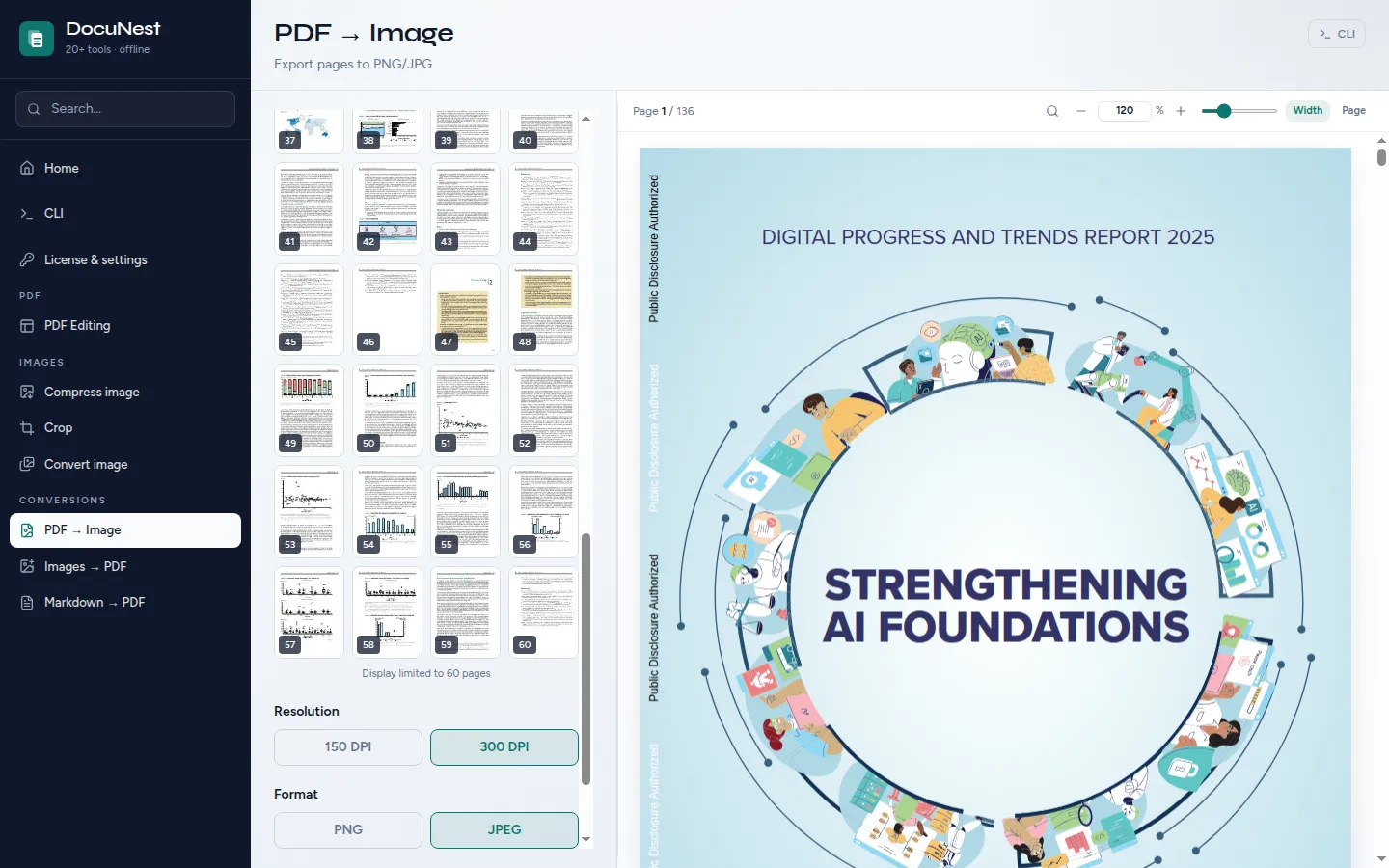
Features
Use cases
Create thumbnails
Generate image previews of each page for a website or gallery.
Share without a PDF reader
Send pages as images that are readable on any device.
Embed in a presentation
Convert PDF pages into images to insert them into a slideshow.
Command line
Same result as the interface, in one command. Nothing leaves your machine.
docunest — zsh
local# Convert to PNG at 300 DPI ❯ docunest pdf to-images -i document.pdf -o images/ --dpi 300 --format png ✓ Done — file written locally, no network upload
Frequently asked questions
What resolution should I choose?
Are all pages converted?
Does the text remain selectable?
Similar tools
Images to PDF
Assemble multiple images into a single PDF file with automatic layout.
🖼️Extract images from a PDF
Recover all the images contained in a PDF file and export them in the format of your choice. Directly from the editor (Document menu, Export embedded images).
🔀Convert an image
Convert your images from one format to another (JPEG, PNG, WebP) with quality control.
Stop sending your PDFs to the cloud.
Download DocuNest: the complete editor, 7-day trial, no credit card, no files leaving your machine.
Download for freeDownload DocuNest
No account required, no data collected.
Linux
Install a system package, or use the AppImage if you prefer a portable version.
Your installation in 3 steps
About a minute to set up: afterwards, everything runs offline on your machine.
File downloaded
Pick your system above: the download starts right away.
Open the file
In Downloads, double-click DocuNest_…_setup.exe and follow the installer.
In Downloads, open the .dmg, then drag DocuNest into Applications.
Double-click the package: your software center handles the install. AppImage: mark it executable, then run it.
Run your first job
Open a PDF and try a tool: merge, redact, convert, everything stays on your machine, no account needed.
Shortcut of the day
Try them as soon as the app opens
Opens the tool palette
Windows 10+, macOS 12+ (Apple Silicon), Linux (deb / rpm / AppImage)