Crop an image
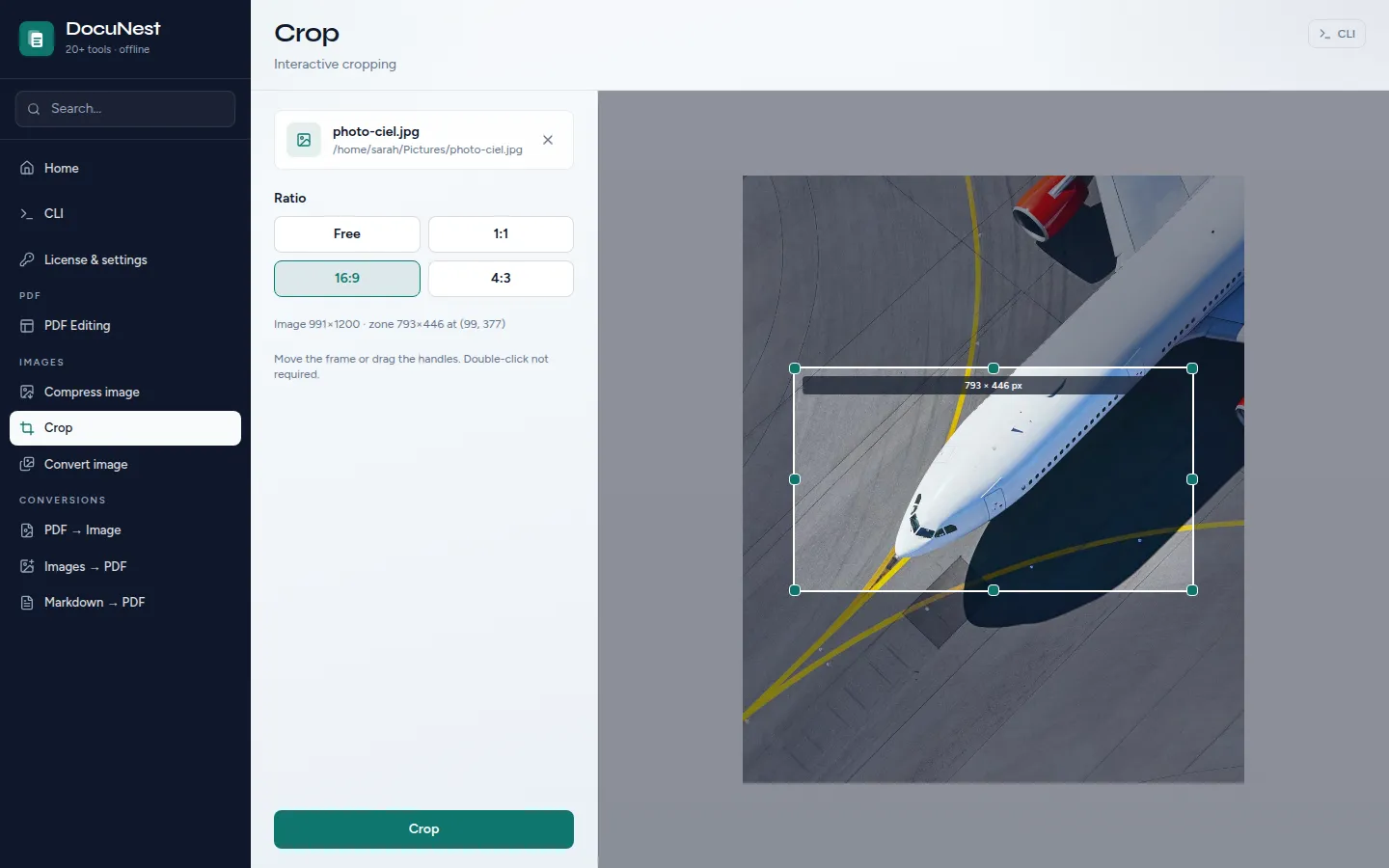
Crop your images by defining a precise crop area using coordinates.
Crop an image in DocuNest: 100% local processing on Windows, macOS, and Linux. Automatable via the docunest CLI.
Features
Use cases
Crop a photo
Remove unwanted edges from a photo to recenter the subject.
Prepare an avatar
Cut out a square area from a photo for a user profile.
Extract a detail
Isolate a specific part of an image to enlarge or reuse it.
Command line
Same result as the interface, in one command. Nothing leaves your machine.
docunest — zsh
local# Crop an image ❯ docunest img crop -i photo.jpg --rect "100,50,800,600" -o cropped.jpg ✓ Done — file written locally, no network upload
Frequently asked questions
How do I define the crop area?
Is the quality preserved?
Similar tools
Crop a PDF
Crop PDF pages by defining a crop box or uniform margins. Directly in DocuNest's unified PDF editor (Pages menu).
📷Compress an image
Reduce the size of your images by adjusting the compression quality, with no visible change.
🔀Convert an image
Convert your images from one format to another (JPEG, PNG, WebP) with quality control.
Stop sending your PDFs to the cloud.
Download DocuNest: the complete editor, 7-day trial, no credit card, no files leaving your machine.
Download for freeDownload DocuNest
No account required, no data collected.
Linux
Install a system package, or use the AppImage if you prefer a portable version.
Your installation in 3 steps
About a minute to set up: afterwards, everything runs offline on your machine.
File downloaded
Pick your system above: the download starts right away.
Open the file
In Downloads, double-click DocuNest_…_setup.exe and follow the installer.
In Downloads, open the .dmg, then drag DocuNest into Applications.
Double-click the package: your software center handles the install. AppImage: mark it executable, then run it.
Run your first job
Open a PDF and try a tool: merge, redact, convert, everything stays on your machine, no account needed.
Shortcut of the day
Try them as soon as the app opens
Opens the tool palette
Windows 10+, macOS 12+ (Apple Silicon), Linux (deb / rpm / AppImage)