Markdown to PDF: 4 methods that keep the layout intact
Converting a Markdown file to PDF takes more than a format change: Markdown is a continuous flow of text, PDF is a fixed sequence of pages. Here are the four methods that work, from free browser printing to the offline application, and the checks that separate a clean PDF from a ruined document.
The real challenge: paginating, not just converting
Markdown describes the structure of a text: this passage is a heading, that one a list, this block some code. It says nothing about the page. PDF, on the other hand, is a fixed format: every line has a definite place on a defined page. Between the two, someone has to make every layout decision: the margins, the size of headings, where lines break, where images sit, how much width tables get.
That is where the methods part ways. Browser printing, the naive solution, renders the text then lets the browser chop it up: imposed headers and footers, tables cut wherever the page ends. A real converter composes the document for the target format: it knows the width of an A4 page, keeps code blocks in a fixed-width font and avoids the telltale flaws of a hastily assembled document.
This distinction explains most disappointments: the converter did transform the text, but it never thought about the page. If the PDF is meant to be read, printed or archived, pagination is not a detail.
The 4 methods to convert Markdown to PDF
Four approaches actually work. They differ in layout quality, in what happens to your file along the way, and in setup effort:
| Method | Controlled layout? | No upload? | When to use it |
|---|---|---|---|
| Offline desktop application | Yes, dedicated pagination engine | Yes, 100% local | Regular and private documents, the reference method |
| Browser printing (Ctrl+P) | Limited: forced headers, margins and cuts | Yes, local | Quick fix, nothing to install |
| Command line (Pandoc) | Yes, complete and adjustable | Yes, local | Automation, if the terminal does not scare you |
| Online converter | Varies with the site | No: the file gets uploaded | Throwaway files, never private notes |
Two honest notes on the free paths. Browser printing does the job in a pinch: preview in an editor, Ctrl+P, save as PDF. But the browser adds the URL and the date in the footer, forces its own margins and clips overflowing tables. Pandoc, the command-line reference, produces a flawless PDF, but it requires a full LaTeX engine, several hundred megabytes, before your first document. For regular use, a dedicated converter that paginates properly on the first try saves the back and forth.
Convert a Markdown file to PDF in four steps
Here is the process with DocuNest's Markdown to PDF converter, built into the unified editor; the logic stays the same in other serious software.
Open your Markdown files
Drag your .md files into the Convert panel. The text shows up as is: no online conversion, no upload, no account. The files never leave your computer.
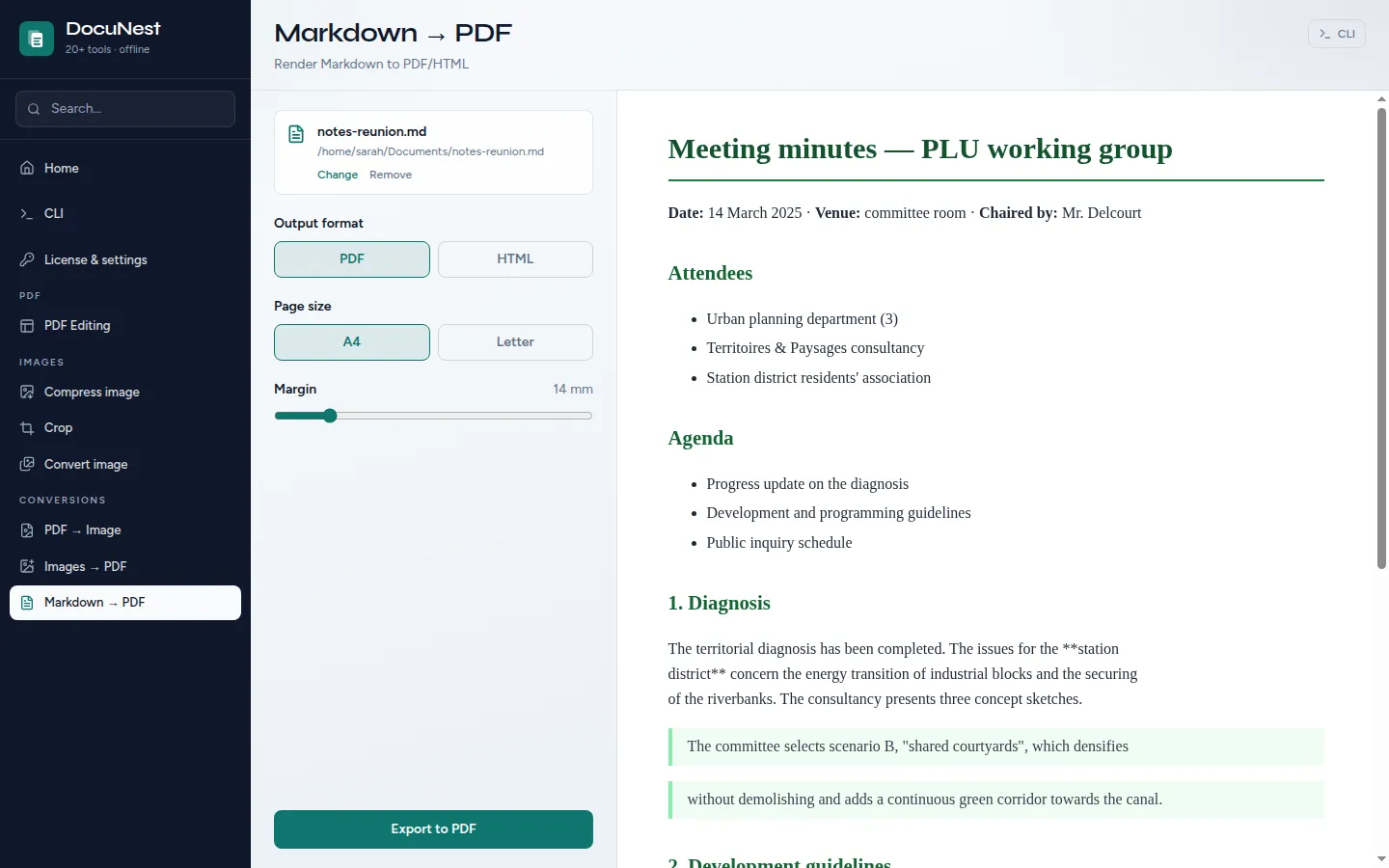
Pick the PDF output
The panel recognizes the Markdown format and offers the PDF output. Headings, lists, bold, quotes, links and code blocks are typeset by the built-in layout engine, code in a fixed-width font.
Set the page size and margins
A4 for Europe, Letter for North America, and a margin from 8 to 40 mm depending on the breathing room you want. Fonts are embedded in the PDF: accents, quotes and apostrophes come out identical on every machine.
Save, single file or batch
One file opens a save dialog, several become one PDF each in the folder of your choice. The same operation is scriptable on the command line:
docunest convert md2pdf -i article.md -o article.pdf --paper a4
Five checks before you send your PDF
Whatever you choose, open the resulting PDF and verify these five points, where careless converters give themselves away. Tables: a wide table exceeds the width of an A4 page; an engine without pagination cuts it mid-cell or loses the right-hand column. Code blocks: they must stay in a fixed-width font, with no auto-indentation and no hyphenation in the middle of a line. Images: your Markdown references local files; an online converter cannot read them off your disk and silently skips them, check what happens to yours. Orphan headings: a heading on the last line of a page with its content on the next one betrays an engine that ignores the widow and orphan rule. Accents: an incomplete font replaces accented characters with squares or question marks; fonts embedded in the PDF guarantee the same rendering everywhere.
Online or offline: where your file goes during the conversion
Think about what Markdown files usually contain: meeting notes, internal documentation, a work journal, a report not meant to circulate. Converting online means uploading that entire content to a server whose retention policy, and possible resale, you do not control: copies exist elsewhere before you have even seen the rendering.
Processing sensitive documents this way can also clash with the GDPR's data-minimization principle: a remote copy is a new processing operation, with a new risk. Everything above works exactly the same offline: the file is read locally, the PDF is written to your disk, and not a byte leaves the machine. We describe our approach to privacy on a dedicated page.
FAQ
How do I convert Markdown to PDF without installing anything?
How do I convert several Markdown files to PDF in one go?
Which page size should I pick, A4 or Letter?
Why does my Markdown render differently depending on the tool?
Can I convert Markdown to PDF from the command line?
To convert your notes without sending them anywhere, the Markdown to PDF converter is built into DocuNest, a comprehensive PDF editor for a one-time fee of €30, with a 7-day free trial, no account required.