Redact a PDF safely: reliable methods and pitfalls to avoid
To safely redact a PDF, use a tool that actually destroys the text and images located under the masked area, save a new copy of the file, and then verify that the redacted text can no longer be copied or found. A black rectangle placed over it is never enough.
Why a black rectangle does not redact a PDF
A PDF file is not an image: it is structured text, accompanied by layout instructions. When you draw a black rectangle over a paragraph, you are simply adding a graphic element on top of the existing text. The characters remain intact in the file: copyable, searchable, extractable.
Redacting a document, in the true sense, is the opposite: deleting the data itself, so that there is no longer any technical way to read it. The distinction is essential as soon as a document leaves your computer. Payslips, medical letters, procedural documents, responses to access requests: the GDPR requires you to protect third parties' personal data when you transmit a document, and text hidden under a black shape is not protected in any way.
You can see it for yourself in thirty seconds: open a PDF on which you have placed black rectangles, select the area, copy, and paste into a word processor. In most cases, the “hidden” words reappear.
The 3 reliable methods to redact a PDF document
All serious methods are based on the same principle: replacing the original file with a new version in which the sensitive content no longer exists. Three approaches achieve this, with different trade-offs:
| Method | Le texte est-il détruit ? | Quality preserved | When to use |
|---|---|---|---|
| Dedicated redaction tool | Yes, text and images | Intact (vector) | Always, this is the reference method |
| Export as an image, then re-conversion to PDF | Yes, everything becomes pixels | Degraded, non-searchable text | Workaround, without a dedicated tool at hand |
| Printing 'as image' to PDF | Yes, if the option is enabled | Degraded, heavier file | Quick workaround, after verification |
An important detail about the third method: printing a PDF to a new PDF without enabling the 'print as image' option is useless: the text passes identically into the new file, rectangles included. This is one of the most common pitfalls, because the operation gives a false impression of a 'new file'. For regular processing of sensitive documents, a true offline PDF editor with a redaction feature avoids these acrobatics and preserves the document's quality.
Redacting a PDF with an offline tool: the steps
Here is the process using DocuNest's redaction tool, integrated into the unified editor; the logic remains the same in other serious software.
Open the document in the editor
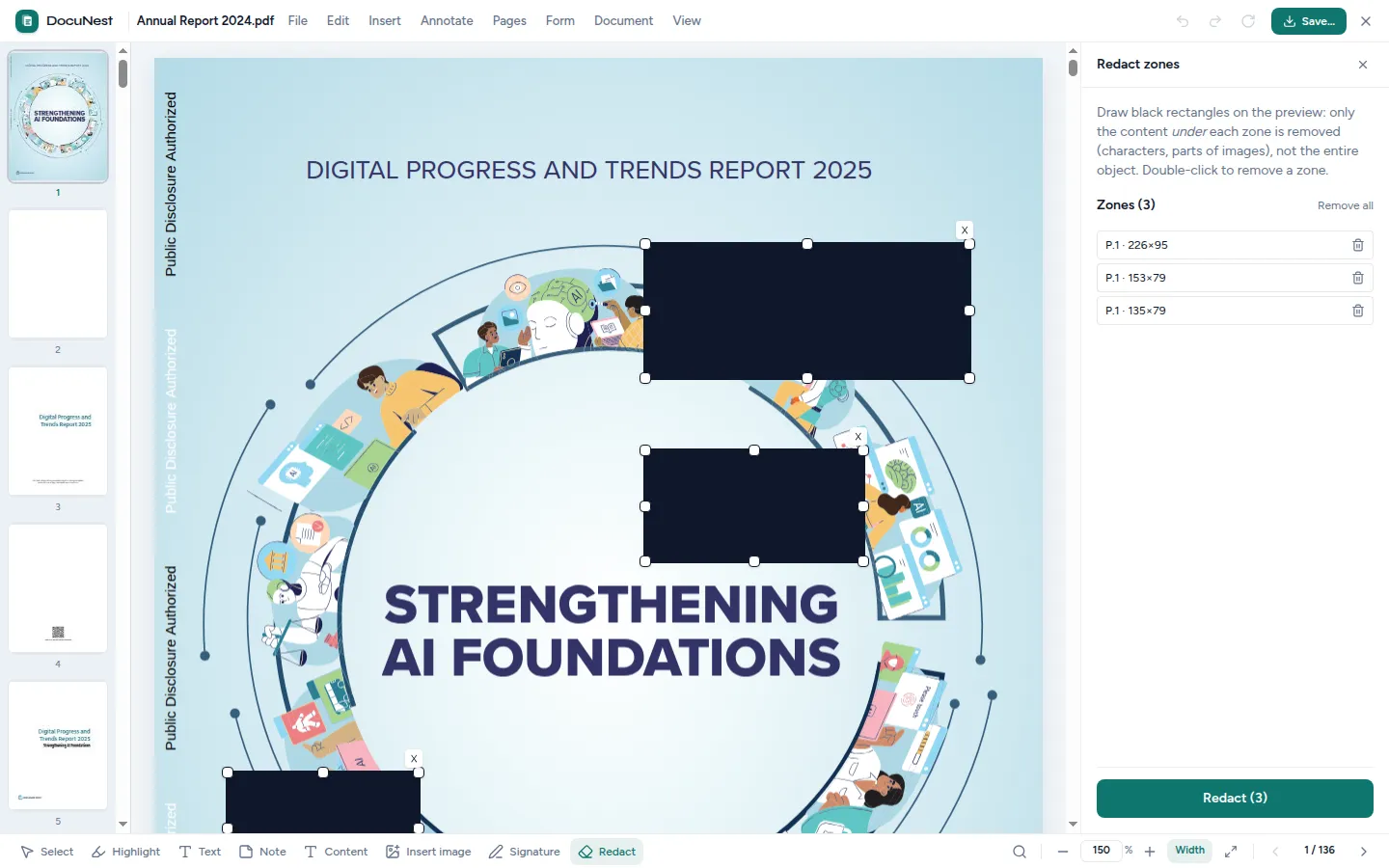
Drag your PDF into DocuNest, then open the Edit menu and choose Redact. The file opens as is, without conversion or upload.
Draw the areas, or let search do it
Precisely define the areas to delete directly on the page. For a term that appears everywhere (a name, a social security number), automatic search places all areas at once, without missing any along the way.
Apply, then export under a new name
Upon application, the text and images under the areas are irreversibly destroyed, not simply covered up. The action remains reversible (Ctrl+Z) as long as you haven't exported; once the file is saved, the deletion is permanent. Always export to a new name: this way you keep a clean copy of the original.
For batch processing, the same operation is scriptable via the command line, handy for mechanically redacting the same areas across a batch of documents:
docunest pdf redact -i document.pdf --page 1 --rect "100,700,200,30" -o resultat.pdf
Verify that the redaction is truly irreversible
Whatever tool you use, take thirty seconds to check the resulting file. Four checks, in order:
- Copy-pasting. Select the redacted area, copy, paste into a word processor: nothing should appear.
- Searching. Ctrl+F, type a word supposed to be hidden: zero results.
- Plain text inspection. Select the whole document, copy it into a plain text editor, and read through it: the sensitive data must appear nowhere in it.
- A second reader. Open the file in a different PDF application than the one used for redacting; a different rendering should reveal nothing more.
Why you should never redact a PDF online
There is an obvious contradiction in redacting online: you entrust a remote server with a document so sensitive that you want to delete passages from it. Once the file is uploaded, you no longer control much: hosting, retention period, potential subcontracting or automated extractions. Promises like 'your files are deleted after processing' rely entirely on trust, and no verification is possible afterward.
Serious redaction works like a cloud-free PDF editor: everything happens on your computer, no byte leaves the machine, and the result is checked locally. It is precisely for sensitive documents that offline processing has the most value; we detail our approach to privacy on a dedicated page.
The 4 common redaction mistakes
- Settling for a black rectangle. This is the mother of all mistakes: everything that follows stems from it. Visual covering is not a deletion.
- Overwriting the original. Saving the redacted version over the original file deprives you of the clean copy; yet it is often the opposite that you regret, when you need to produce the complete document to an authorized third party.
- Forgetting metadata and attachments. Author name, comments, annotations, files attached to the PDF: sensitive content is not limited to what is displayed at the top of the page.
- Believing flattening is enough. Merging layers into a single plane 'freezes' the appearance, but the text under the black areas remains present in the file.
FAQ
What does redacting a PDF mean exactly?
Is a simple black rectangle enough to hide text?
How to redact a PDF for free?
How to check if a PDF is properly redacted?
What is the difference between redacting, crossing out, and hiding?
To redact your sensitive documents without them ever leaving your computer, the redaction tool is integrated into DocuNest, a comprehensive PDF editor for a one-time fee of €30, with a 7-day free trial, no account required.